
Turn Dead by Daylight Gameplay into Shorts
Find memorable DBD moments and turn them into vertical videos with a dedicated HUD editor. Reposition perks, survivor status, items, generators, and facecam — then save your layout for future clips.
DBD Perks (4 Diamond Masks)
Selected4 independent diamond shapes covering Sprint Burst, Decisive Strike, Adrenaline, and Borrowed Time.
Survivors Status (4 Health Slots)
Tracks hooks, injuries, and obsession status without obstruction.
Streamer Facecam (Overlay)
Positioned at canvas top for clean viewer connection while gameplay unfolds below.
Full-frame 9:16 gameplay with sharp floating perk diamonds, survivor health status, and facecam.
Keep Crucial DBD Information Visible on Mobile
Standard 9:16 center cropping cuts off peripheral information. In Dead by Daylight, that means viewers can’t see perk cooldowns, survivor health states, or generator counts. Our dedicated HUD Editor solves this by compositing live elements over full vertical gameplay.
Full-Frame 9:16 Gameplay
Your primary gameplay fills the entire vertical 1080×1920 canvas. Use horizontal panning to keep your killer lunge or survivor loop perfectly centered.
5 Independent HUD Widgets
Extract Facecam, Perks, Survivors, Item & Add-ons, and Gens separately. Position, scale, and layer each element exactly where your audience needs it.
4 Distinct Diamond Perk Masks
The DBD Perks widget extracts all four perk diamonds individually without ugly rectangular edges. Perks remain razor-sharp over gameplay.
Custom Masks & Feathered Edges
Switch between original crop and mask-only mode (transparent surround with soft feathered edges for DBD perk diamonds and survivor icons).
Real-Time Mobile-Ready Preview
What you see in the browser editor matches your final FFmpeg video render bit-for-bit. Adjust scale, crop, and position with zero guesswork.
Saved Personal DBD Layouts
Save your customized HUD layout to your account. Reuse it immediately across all future Dead by Daylight clips with a single click.
When viewers can clearly read that a survivor is on death hook or that Hex: Ruin is active, they understand the drama instantly and watch to the end.
Same Gameplay. More Information.
See how Gaming HUD brings perks, survivor status, items, and generator information back into your vertical Dead by Daylight clips.
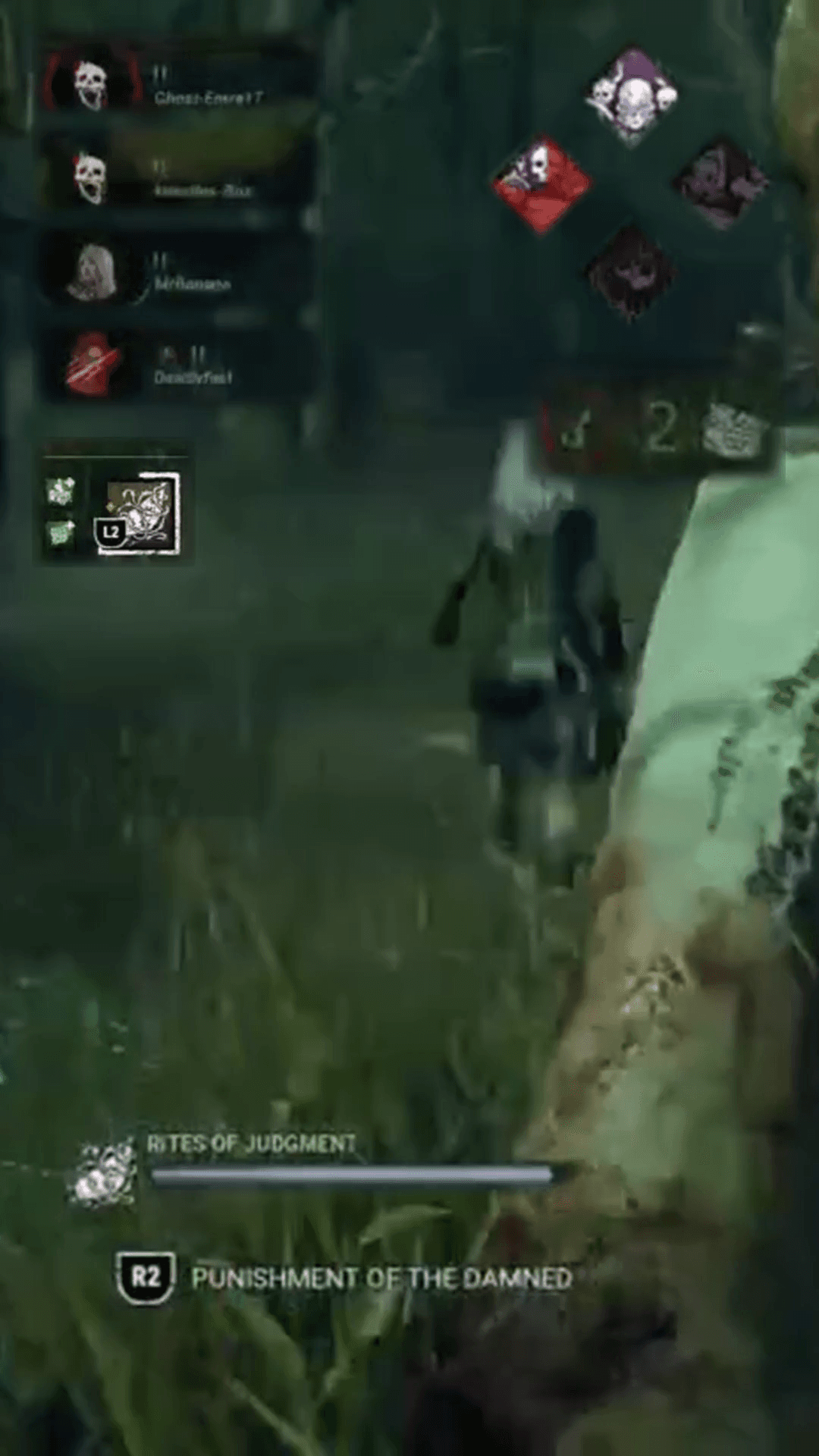
Keep perks, survivors, items, and generators visible.
Standard 9:16 Crop
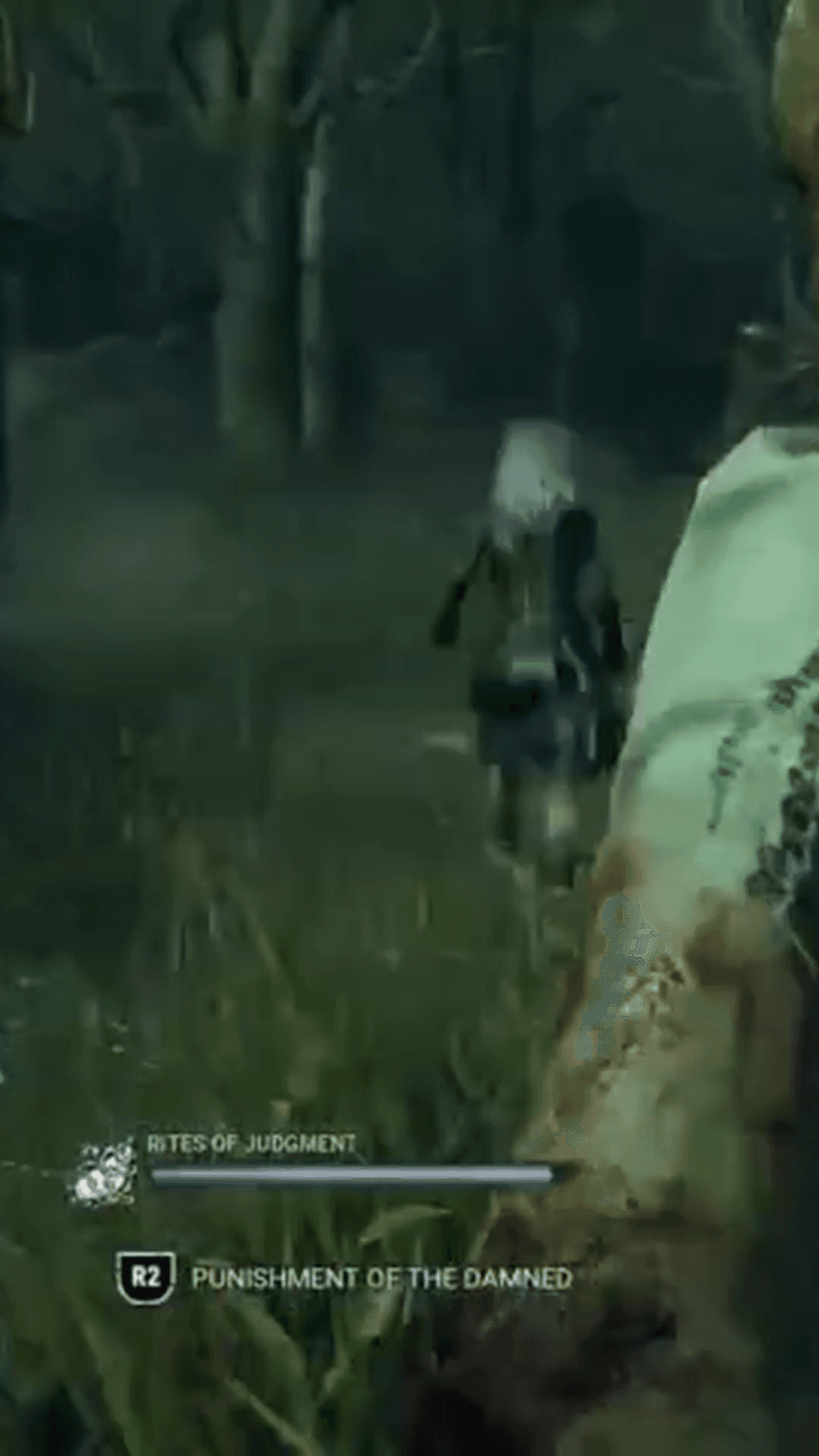
Important HUD information falls outside the vertical frame.
Gaming HUD
Keep perks, survivors, items, and generators visible.
Customize Once, Reuse on Every DBD Short
You do not need to re-align your perks or reposition your facecam every time you make a clip. The Saved Layouts system keeps your settings ready in your account.
Customize Your HUD
Fine-tune widget positions, source crops, diamond masks, and edge feathering to match your stream overlay and camera setup.
Save Personal Layout
Click “Save as New” and name your layout (e.g. “Aggro Survivor Setup”). Your layout is securely stored under your account for Dead by Daylight.
Reuse in One Click
When you review future highlights or stream clips, select your saved layout from the dropdown. All widgets snap into place instantly.
AI Highlight Discovery from DBD Streams & Twitch VODs
Gameplay Shorts evaluates multiple independent signals across your broadcast rather than assuming that every loud sound is an exciting moment.
Sudden shifts in gameplay sound intensity, chase cues, and motion pacing.
Vocal excitement, commentary shifts, and visual camera reaction.
Message velocity spikes and viewer emote surges during tense moments.
On-screen frame dynamics and scene transitions.
Evaluates whether candidate moments include enough setup and conclusion to function naturally as a short-form clip.
Highlight and Viral scores serve as algorithmic ranking signals to help you prioritize reviewing the most promising clips first. They are sorting aids, not guarantees of reach or viral performance.
What Kind of DBD Moments Can You Surface?
The platform analyzes audio dynamics, vocal excitement, viewer chat surges, and visual pacing to identify candidate highlights across five primary categories.
Clutch Plays
High-pressure endgame standoffs, gate escapes, and crucial killer downs under pressure.
Funny Moments & Fails
Missed skill checks, accidental vault traps, unexpected jump scares, and streamer laughter.
Streamer Reactions
Genuine surprise, jump-scare scream reactions, and commentary connected directly to in-match action.
High-Intensity Gameplay
Tight pallet loops, mind games at jungle gyms, and rapid chase action.
Unexpected Moments
Sudden hatch spawns, bizarre bugs, or unexpected survivor team saves.
From a DBD Twitch VOD to a Finished Short
A straightforward six-step pipeline from stream broadcast to finished vertical video.
Add your Twitch VOD
Paste your Dead by Daylight Twitch VOD link or enter the broadcast video ID into Gameplay Shorts without downloading large files.
Let AI surface candidate moments
Gameplay Shorts evaluates gameplay intensity, vocal energy, chat velocity, and visual dynamics across the stream to identify high-interest candidates.
Review the candidate clips
Review timestamps, categories, and ranking signals to pick the moments you want to produce into vertical videos.
Apply the DBD HUD Layout
Select the Dead by Daylight HUD preset or load your saved personal layout to overlay sharp perk diamonds, survivor health, and facecam on full-frame gameplay.
Add synchronized captions
Generate synchronized subtitles, pick your typography style (Clean, Bold, Gaming, or Karaoke), and refine any transcript text directly in the browser.
Export 1080×1920 Short
Render a high-definition, watermark-free 1080×1920 MP4 ready for upload to YouTube Shorts, TikTok, and Instagram Reels.
Flexible Layout Formats for Any Gaming Clip
In addition to the dedicated Gaming HUD Editor, Gameplay Shorts supports multiple layout formats to suit every clip style:
Full-frame 9:16 gameplay with sharp floating DBD perk diamonds, survivor status, and facecam.
Classic stacked layout: 1080×640 streamer webcam on top and 1080×1280 gameplay below.
Fills the vertical screen with horizontal pan control to focus directly on character action.
Keeps the full 16:9 gameplay frame visible against a synchronized blurred background.
Centers the complete 16:9 frame with clean dark cinematic letterboxing above and below.
Add Captions to the Final Clip
Captions help make dialogue readable when viewers watch without sound or on noisy mobile feeds. Synchronized subtitles keep the commentary easy to follow alongside intense gameplay.
Clean
High-contrast white typography with soft drop shadows designed for readability over dark environments.
Bold
Thicker lettering with strong outlines designed for fast-paced dialogue and high-energy moments.
Gaming
High-energy styling with colored highlights for dynamic streamer commentary.
Karaoke
Word-by-word highlighting that follows the spoken dialogue, keeping every reaction and punchline engaging.
Scanning Long Dead by Daylight Broadcasts
Dead by Daylight broadcasts can run for multiple hours across dozens of matches. Stream analysis is measured by duration.
If your stream recording is longer than your currently available VOD-hour balance, Gameplay Shorts provides a Partial Stream Scan option.
This allows you to analyze the beginning portion of the stream up to your available credit balance immediately (for example, analyzing the first 2 hours of a longer broadcast), or add more VOD hours to cover the entire session.
Turn Your DBD Gameplay into Vertical Shorts
Start with 2 free VOD hours. Paste your Dead by Daylight Twitch VOD, customize your 9:16 HUD layout, and export clean, watermark-free vertical Shorts in minutes.
2 VOD hours free for new eligible accounts • Dedicated DBD HUD Editor • Watermark-free 1080×1920 MP4
Frequently Asked Questions
What is the 9:16 Dead by Daylight HUD Editor?
Which Dead by Daylight HUD elements can I reposition?
Can I save my custom DBD HUD layout for future clips?
How does masking work on DBD widgets?
Can AI find highlights in a Dead by Daylight stream?
Does Gameplay Shorts automatically detect specific DBD game events?
Can I use the tool for both Killer and Survivor streams?
Can I keep my streamer facecam visible in vertical clips?
Can I add captions to my DBD clips?
Do I need to download my Twitch VOD first?
What happens if my DBD stream is several hours long?
What resolution does Gameplay Shorts export?
Is it free to try with a DBD stream?
Gameplay Shorts is an independent tool and is not affiliated with or endorsed by the developers or publisher of Dead by Daylight.